npx – beyond the basics
If you’ve worked with Node.js, you’ve probably come across npm commands like install and run. But have you ever wondered about npx — what it does, how it works behind the scenes, and how to manage the temporary packages it downloads? In this post, we’ll explore npx, global packages, and best practices for keeping your Node environment clean.
What is npx?
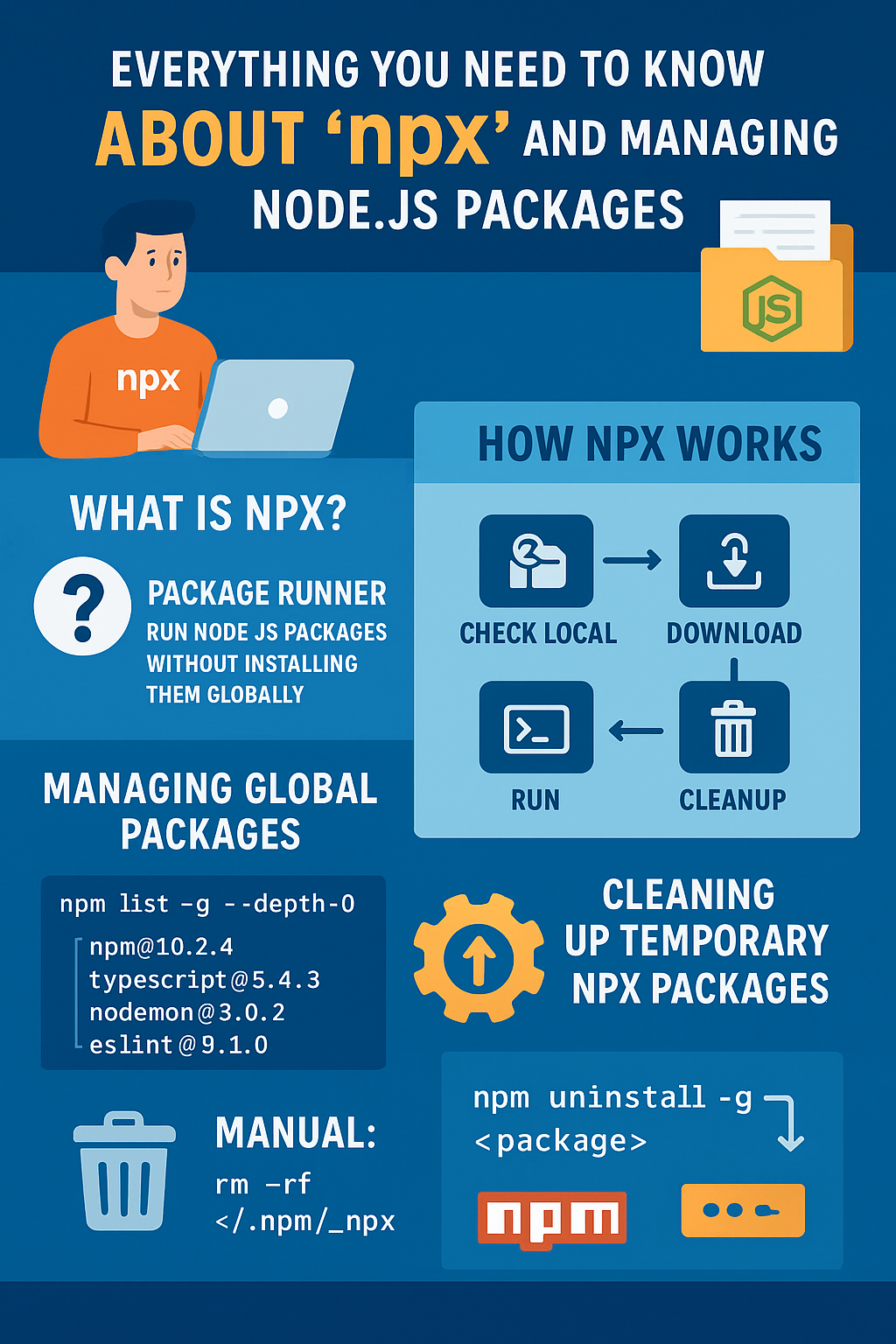
npx is a package runner that comes bundled with npm v5.2.0+. Its main purpose?
Run Node.js packages without installing them globally.
This makes it perfect for one-off commands, CLI tools, and scripts without cluttering your global environment.
How npx Works
When you run a command like:
npx create-react-app my-appHere’s what happens:
- Check local project binaries
npxfirst looks innode_modules/.binof your project. If the package exists locally, it runs it. - Download if not found If not found locally,
npxdownloads a temporary copy from npm. This is stored in a cache folder:- macOS/Linux:
~/.npm/_npx/ - Windows:
C:\Users\<username>\AppData\Roaming\npm-cache\_npx\
- macOS/Linux:
- Run the package
npxtemporarily adds the package to your PATH and executes it. - Cleanup Temporary folders may be deleted immediately after execution, though cached versions are often retained for reuse.
Examples of npx in Action
Run a one-off CLI tool:
npx cowsay "Hello, Vinod!"Run a specific package version:
npx create-react-app@5.0.1 my-appUse local binaries without installing globally:
npx eslint .Run scripts from GitHub:
npx github:username/repoPro Tip: Add --verbose to see what npx is doing under the hood:
npx --verbose cowsay "Hi Vinod"Managing Globally Installed Packages
Sometimes you might want to see or clean up your global Node packages.
List All Globally Installed Packages
npm list -g --depth=0Example output:
/usr/local/lib
├── npm@10.2.4
├── typescript@5.4.3
├── nodemon@3.0.2
└── eslint@9.1.0
Find Where Global Packages and Executables Live
- Global package root:
npm root -g- Global binaries (CLI commands):
npm bin -g- Check exact executable path:
which nodemon   # Linux/macOS
where nodemon   # Windows
Uninstall a Global Package Safely
npm uninstall -g nodemonAfter uninstalling, verify removal:
npm list -g --depth=0
which nodemon
⚠️ Tip: Avoid installing tools globally when possible. Use
npxfor one-off runs to keep your environment clean.
Cleaning Up Temporary npx Packages
npx downloads temporary packages to your npm cache. Over time, these can accumulate and take space.
Locate the Cache
npm config get cacheTypical location:
- macOS/Linux:
~/.npm/_npx/ - Windows:
C:\Users\<username>\AppData\Roaming\npm-cache\_npx\
Manual Cleanup
macOS/Linux:
rm -rf ~/.npm/_npxWindows (PowerShell):
Remove-Item "$env:AppData\npm-cache\_npx" -Recurse -ForceUsing npm to Clean Cache
npm cache clean --force⚠️ This removes all npm cached packages, not just
npxtemporary files. Use carefully.
Preventing Unnecessary Downloads
If you already have a local version of a package, you can avoid downloading:
npx --no-install eslint .Summary
npxlets you run packages without global installs.- Temporary packages live in the npm cache and can be cleaned manually or with
npm cache clean. - Check global packages with
npm list -g --depth=0, and uninstall safely withnpm uninstall -g <package>. - Use
npx --no-installto avoid unnecessary downloads.
By understanding npx and global package management, you can keep your Node.js environment clean, efficient, and up-to-date.